Prepare a GLB Model for Architecture and Interior Reviews

A model handoff should let another person open the file, recognise its orientation and check that it is the intended size. Exporting successfully from the authoring application is only the first check. Test the actual delivered file in the receiving tool and keep a short record of the dimensions and assumptions that matter.
Choose the format for the receiving tool
Khronos defines glTF as a format for delivering 3D scenes and models, with a binary GLB form that can hold scene information and assets together. A file extension alone does not tell you whether a particular viewer supports every feature inside the model. Check the receiving tool's requirements before selecting export options.
ArchHive Site Study currently accepts self-contained, uncompressed static GLB models and geometry-only OBJ files, up to its displayed 25 MB upload limit and separate complexity limits. Native SKP and IFC files, external asset references, animated or skinned models, and compressed GLB geometry are outside this import workflow. Keep your editable authoring file separately.
Prepare a clean review copy
Choose the geometry required for the review. An early site-massing discussion may need the envelope, major openings and roof form rather than every internal component. An interior presentation may need furniture and surfaces that explain the room, while avoiding unseen objects that add no useful information to the specific view.
Do not simplify the only copy of your design model. Create an export copy or use an export selection so the original remains available. Give the delivered file a revision name and record the authoring application's version if a later conversion needs investigation.
Check size, origin and orientation
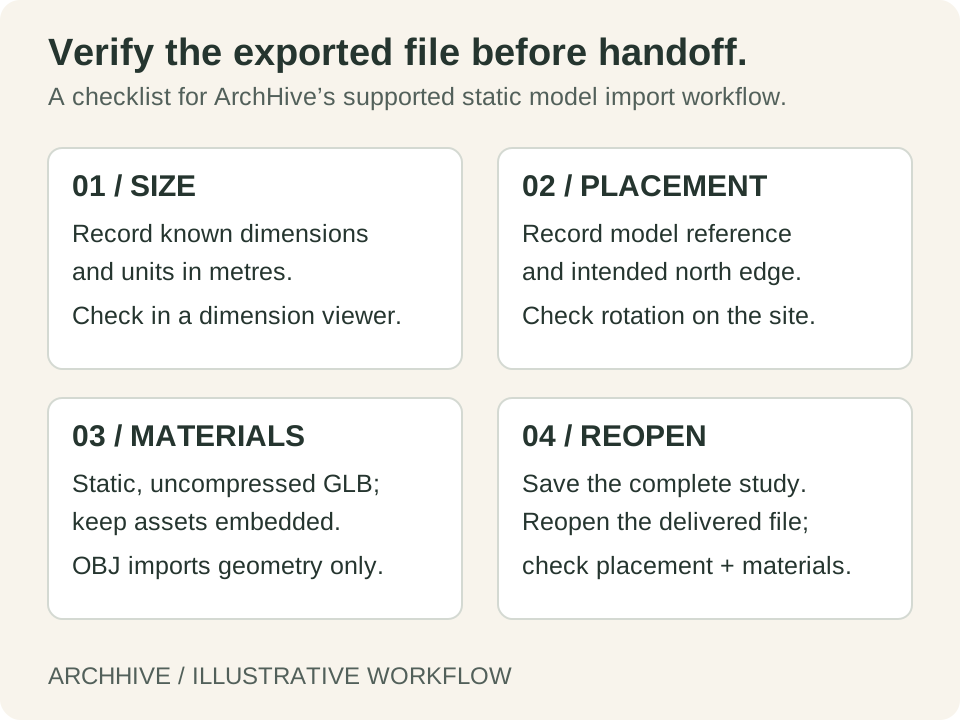
Record at least one known horizontal dimension and a known height in metres. Check the exported file against those references in an authoring tool or viewer that displays dimensions before accepting the site placement. Site Study currently offers a scale control, rather than an imported-model dimension inspector. If the size is wrong, check the source units and export settings before using an arbitrary scale factor to make the image look convincing.
Choose a useful placement reference in the authoring model and document it. Identify which edge should face north or another known direction. Site Study provides translation, rotation and scale controls for placement; they still need a reliable reference from the design model. A familiar-looking perspective is not enough to confirm geographic orientation.
- File name and revision.
- Known width, depth and height with units.
- Placement reference and intended orientation.
- Included and deliberately omitted geometry.
- Material and texture assumptions.
Test the materials in the exported file
For the supported GLB route, keep the required assets embedded in the file. Open the exported copy and inspect a material you can easily recognise. Look for missing textures, unexpectedly transparent faces or surfaces that changed appearance. OBJ is currently a geometry-only route in Site Study, so do not expect its companion material files to reproduce the same appearance there.
The Khronos glTF Validator can help identify format problems. A validator pass does not certify compatibility with ArchHive's more restricted importer, model dimensions or the accuracy of the design. Use both a format check where appropriate and a visual check in the intended receiving tool.
Save and reopen the placed study
Place the model on the marked plot, verify its rotation and size, then save the complete study document. Reopen that saved file and check the geometry, materials, placement and clock settings. This confirms the file you plan to hand over rather than only the current open session.
For review outputs, note that Site Study uses a perspective view and conceptual exterior shadows. It does not generate interior sections or daylight metrics, and its drawn-mass coverage figures do not include imported models. Keep those limits visible wherever the exported view supports a design decision.
Get Prepare a GLB Model for Architecture and Interior Reviews Resources on ArchHive
Browse professional materials, templates, and expert guidance related to this topic.
Explore ResourcesFound this useful? Share it
About the Author
Original workflow guides from ArchHive Editorial. Examples are illustrative; source links distinguish professional context from our suggested exercises.